App Review – Discord as an organisation tool
- Tara Hodgson

- Feb 16, 2021
- 4 min read
Updated: Feb 26, 2021
Using Discord as an organisational tool probably sounds strange at first but I’m going to ask you to bear with me until I’ve explained this. Discord has replaced 90% of the apps and software I used to use to organise things when I wasn’t using my physical BuJo.
Why use Discord?
I have been searching for the perfect to-do app that help me keep my entire life organised and has everything that I need in it already. Unfortunately that doesn’t seem to exist and I don’t think it ever will. The chances of finding something so perfect that I would consider giving up my physical BuJo are just too slim because I’m picky about what I want and I also seem to want what 5 apps are designed to do all rolled into one.
So, why use Discord? For me it’s easy to get lost in customising and organising rather than actually using and since there’s not as much to customise on Discord it means that I get down to actually using it quicker. I also like the fact I can control how many and what channels I have, group these channels into categories and include emoji, images and some ~fancy~ looking text. Discord became an easy place to type a simple message with whatever tasks I wanted to do, hit send and then delete the message once the task was complete.
For weekly tasks I edit the message and write “M / Tu / W / Th / F / Sa / Su” depending on what day of the week it is and if I’ve completed the task. For recurring monthly tasks I simply write the date I did the task.
I can keep track of so many other things than tasks and habits, and this was so convenient that over time Discord became my main organisational tool.
Creating a Server On Discord

Scroll to where you see this symbol, click on it and then “Create my Own”
I made mine for “me and my friends” which brings me to the next step…
How to set up a Channel?
So below you can see how your server will look when you first create it. I’ve named mine “Test server” so you can see what it looks like every step of the way and (hopefully) follow along to create your own.

Test Server – what it looks like when it is first created
You can see that there are two types of channel, text and voice. We’re going to be sticking with the text type for this. Now you already have 1 channel of each type created but if you want to add more you go to the + icon by the “Text Channels” and follow the instructions there.
You can make as many of these as you like and also create categories so that you can organise your channels better. To make a category you click the dropdown menu by your server title and then “Create Category” as shown in the image below.

What to include?
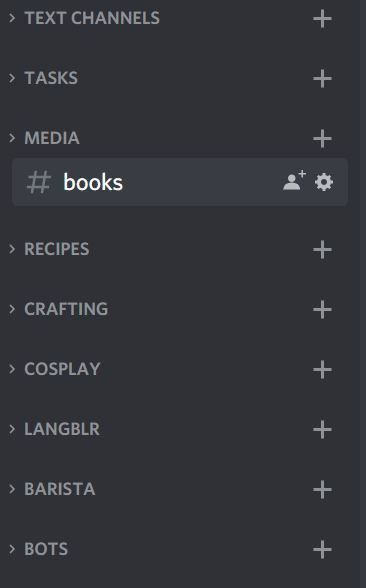


This is an example of some of my categories and channels. I have “tasks which includes my to-do lists (more on that below), media, recipes, crafting, cosplay, langblr, barista and bots. For example:
Tasks
Daily
Weekly
Monthly
Media
Youtube links
Books
TV Shows
Films
Links
And so on.
I’ve included these because they’re relevant to me and they are what I would normally include in my BuJo, either as their own spreads or as part of my weekly spreads. The fact I can include links to various things is a life saver. For the TV Shows I write down where they’re hosted, what season and episode I’m up to and if I’m all caught up. For links it’s anything I have been reading on mobile that I want to then look at on the laptop. Books is something I’ll be talking about more in next week’s blog post, so stay tuned for that.
You can include however much or little that you want to. This is your channel. The above things are just what I had already in my BuJo but spread out, so start there and work your way out to see what you want to include.
Daily, weekly and monthly tasks


As you can see from the image above you can sort out 3 separate channels for your daily, weekly and monthly tasks. These are mine for this month and once they’re complete I either delete the task (for daily), write the day I’ve done it (weekly), or write the date I’ve completed it (monthly).
If I haven’t done any of these tasks I’ll see them at the top of the channel at the beginning of the next month. If this is the case then on the first of the month I edit and change the text to be bold.
This means I never forget a task and never lose it because it was written on last month’s section which I love.
Mobile and Desktop
This is one of the main reasons that I’ve been using Discord for organisation. You can be using it on desktop, create your server and your lists. Later on in the day you’re in the kitchen, away from your laptop but you’ve completed a task. No problem! Just grab your phone, load up discord and go into your server to delete it from there.
You can have your server with you wherever you go. No need to worry about losing your physical bujo or trying to access a website on mobile. Just simply download the app from the Play Store or the App Store and you’re ready to go!
Conclusion
Discord has quickly become one of my favourite apps on both desktop and my phone to use for keeping myself organised. It’s simple to use, really easy to add and edit channels and I don’t end up spending more time setting it up than I do using it. There’s so much that you can do with it, and my way of doing things isn’t the only one by far.
I’d recommend it to anyone and everyone.
Hey! Tara here and thanks for checking out my blog. I update every Tuesday with posts about studying tips, advice and talk about productivity and organisation too. If you want to keep up to date with my latest blog posts I’d love it if you subscribed to this blog.


Comments